Project templates are in Public Preview. The feature is still evolving and standard SLAs don’t apply. We don’t recommend it for production workloads yet. It’s available to Enterprise customers on Cloud and to self-hosted customers running Octopus 2026.2+. We’d love your feedback as we work towards General Availability, tell us what you think.
Overview
Project templates are reusable project blueprints that can be shared across multiple spaces in Octopus Deploy. Instead of manually configuring each new project from scratch, defining deployment steps and variables every time, you create a single template that any space can use as a starting point. This ensures teams follow the same standards and removes the risk of configuration drift.
To create or manage your project templates, navigate to Platform Hub. If you haven’t set up your Git repository, you must do so before creating a project template.
- Navigate to Project Templates in Platform Hub.
- Give the project template a Name and an optional Description.
- Create your project template.
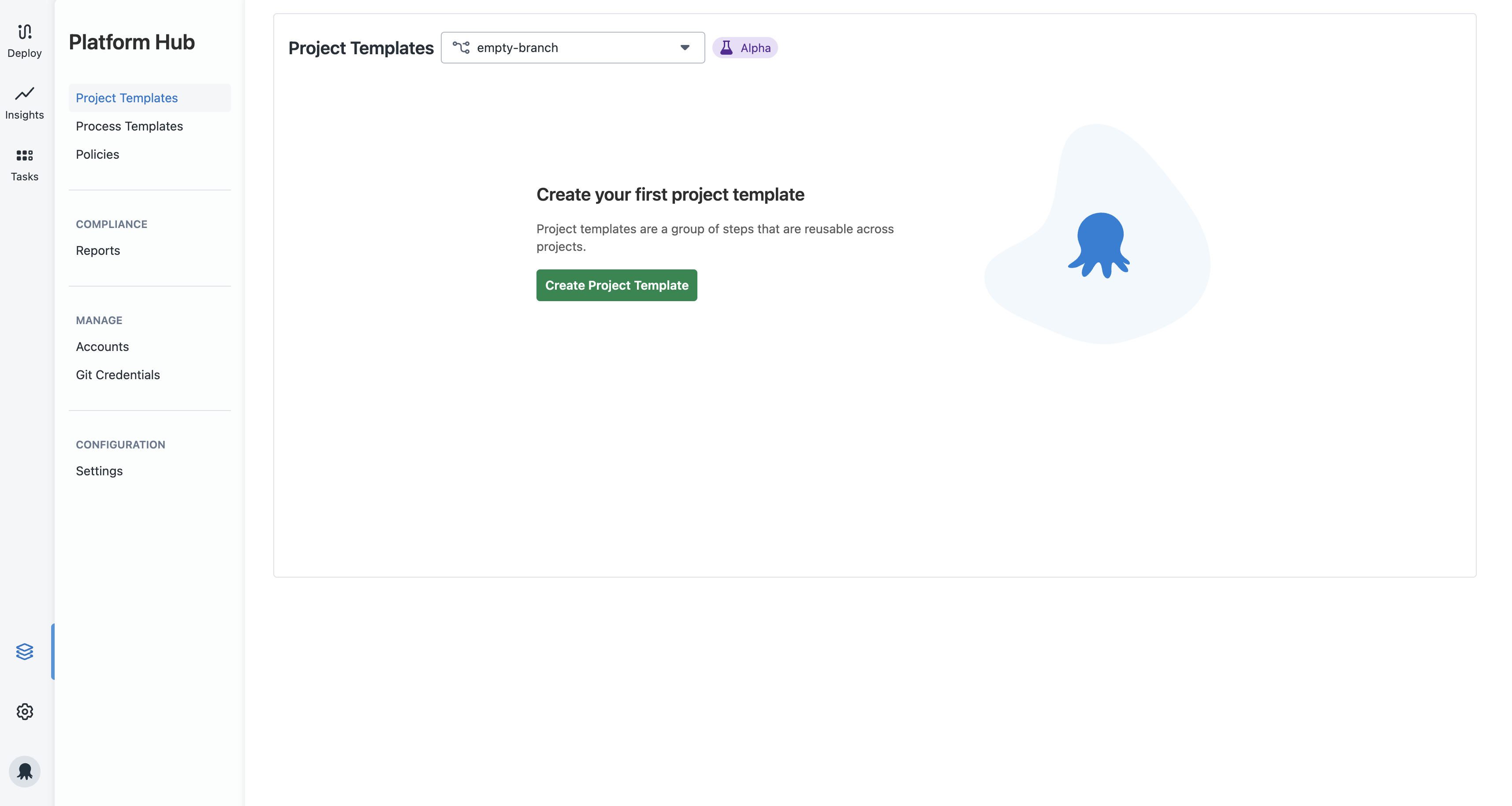
After creating your template, Octopus adds the template’s folder and OCL files to your Git repository. If you’ve already created templates or are joining an existing team, you’ll see the existing templates on the overview page.
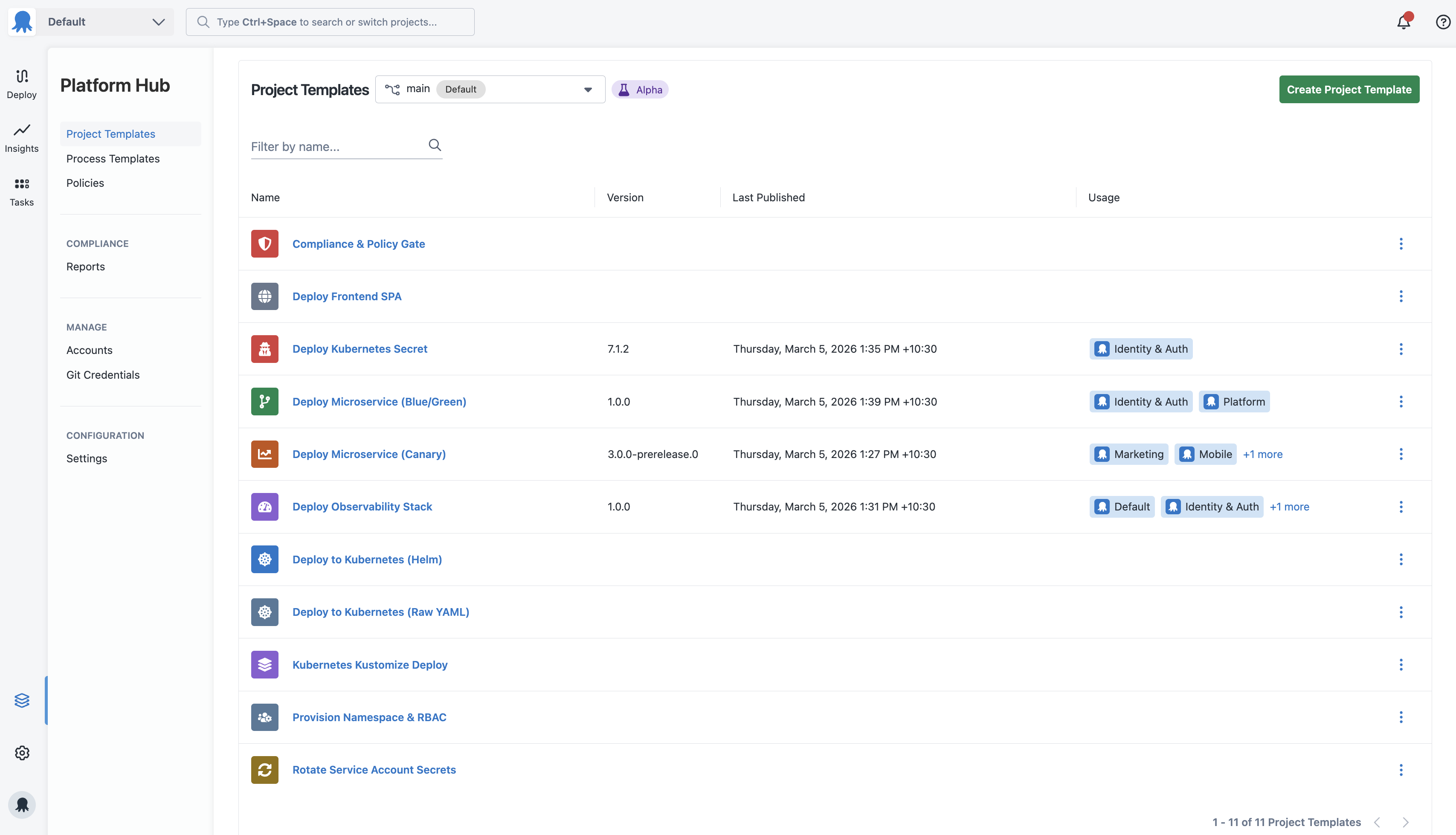
You can now configure your template. For each template, you can define:
Deployment process
The deployment process defines the steps Octopus orchestrates when deploying a project created from this template. Each project template has a single deployment process, and you can use Octopus’s built-in steps, step templates, community step templates, and process templates to define it.
Unlike standard projects, project templates validate the deployment process when you publish, not when you commit. You can save an incomplete process and continue configuring parameters and variables before publishing. This will change once we add inline variable configuration to the deployment process editor.
Projects created from the template can’t modify the deployment process. They can’t add, remove, reorder, or disable steps. The only thing a project can configure is the parameter values explicitly exposed in the template, ensuring every project based on the template follows the same deployment process.
Some steps behave differently inside the project template editor. Instead of letting you set a value directly, they ask for parameters or variables. Parameters are required when a step requires a resource that Platform Hub can’t define, such as a Worker Pool, and that resource must be supplied by the project. These fields accept parameters so projects can provide the right values for their context.
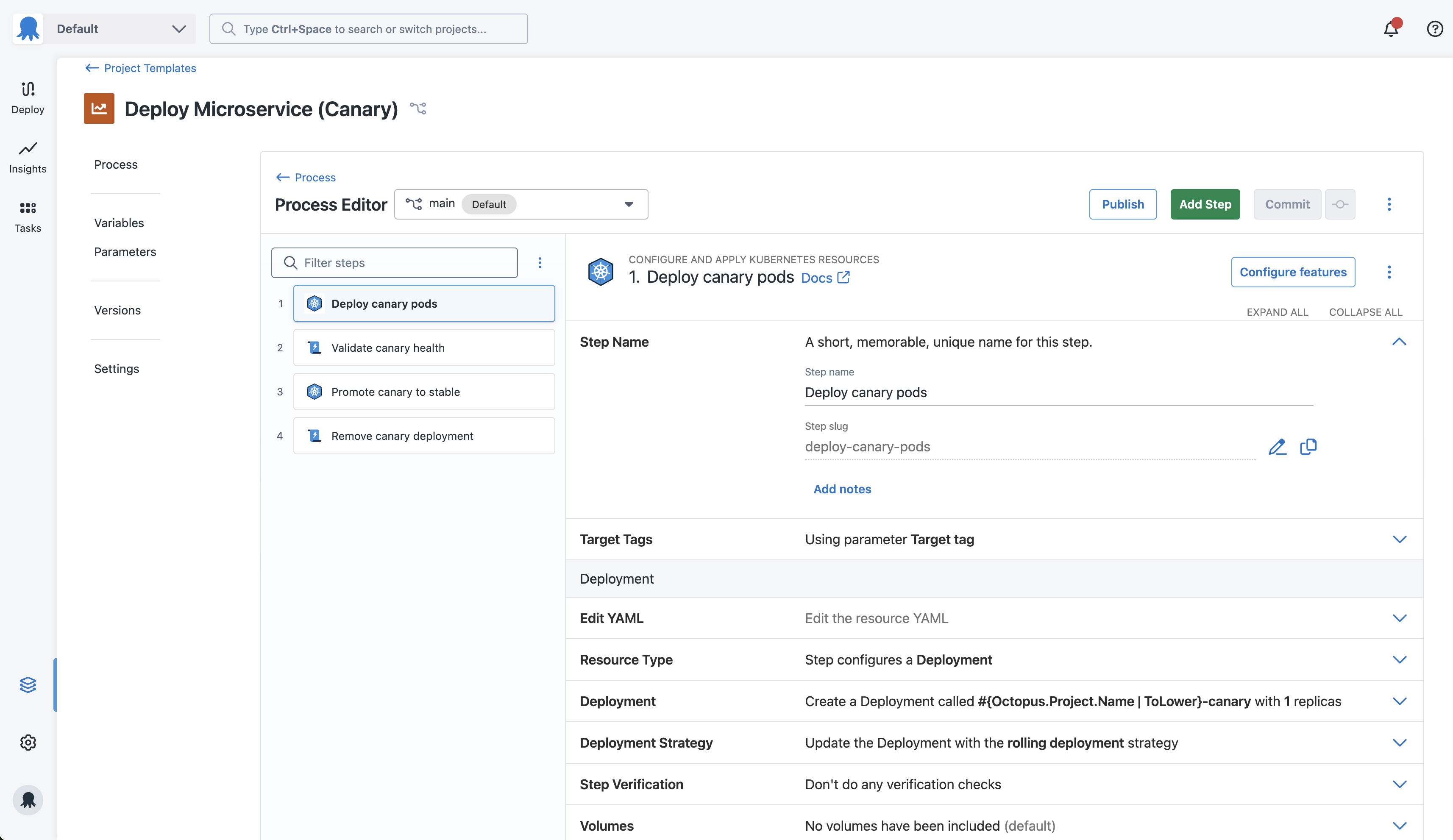
If your deployment process includes a process template configured to auto-update on patch or minor versions, those updates flow through to templated projects automatically, even without you publishing a new version of the project template.
Channels
Channels in project templates function the same as they do in projects. You can define channels based on the intended release strategies for projects that use this template. Every project template comes with a default channel.
Ephemeral Environment channels aren’t yet supported in Project Templates.
In a project template, channels reference lifecycles that reside within the project template itself.
Once a project template is being used by projects in Spaces, deleting a channel or changing its filename is an operation that can have significant impacts. Unlike a regular project, channels in a project template can be modified or removed when projects using the template have releases or triggers referencing the given channel. Modifying a channel in this way will require a major version to be published, as this will prevent existing releases and triggers from being usable for affected templated projects until their channel references are re-mapped. If you change a channel in this way, we strongly recommend having another valid channel which projects can re-map their releases and triggers to before deleting or renaming the channel.
Lifecycles
Unlike lifecycles in Spaces, lifecycles in Platform Hub are defined within each project template. Project template lifecycles follow the same conventions as lifecycles in Spaces. Instead of specifying environments in phases, you select from the available environment parameters in the template. This allows you to establish a standardized configuration for all templated projects to follow. For example, creating a phase which uses an environment parameter labelled “Production Environment” conveys to teams using the template that the given phase is designated for Production deployments. In their project, they can then set the value of this parameter to the production environment(s) in their respective Space.
Every project template comes with a default lifecycle. This uses the same conventions as the default lifecycle in Spaces which will automatically include all environment parameters in the order they’re defined in the template.
While retention policies can be configured in project template lifecycles, these aren’t yet fully supported.
Parameters
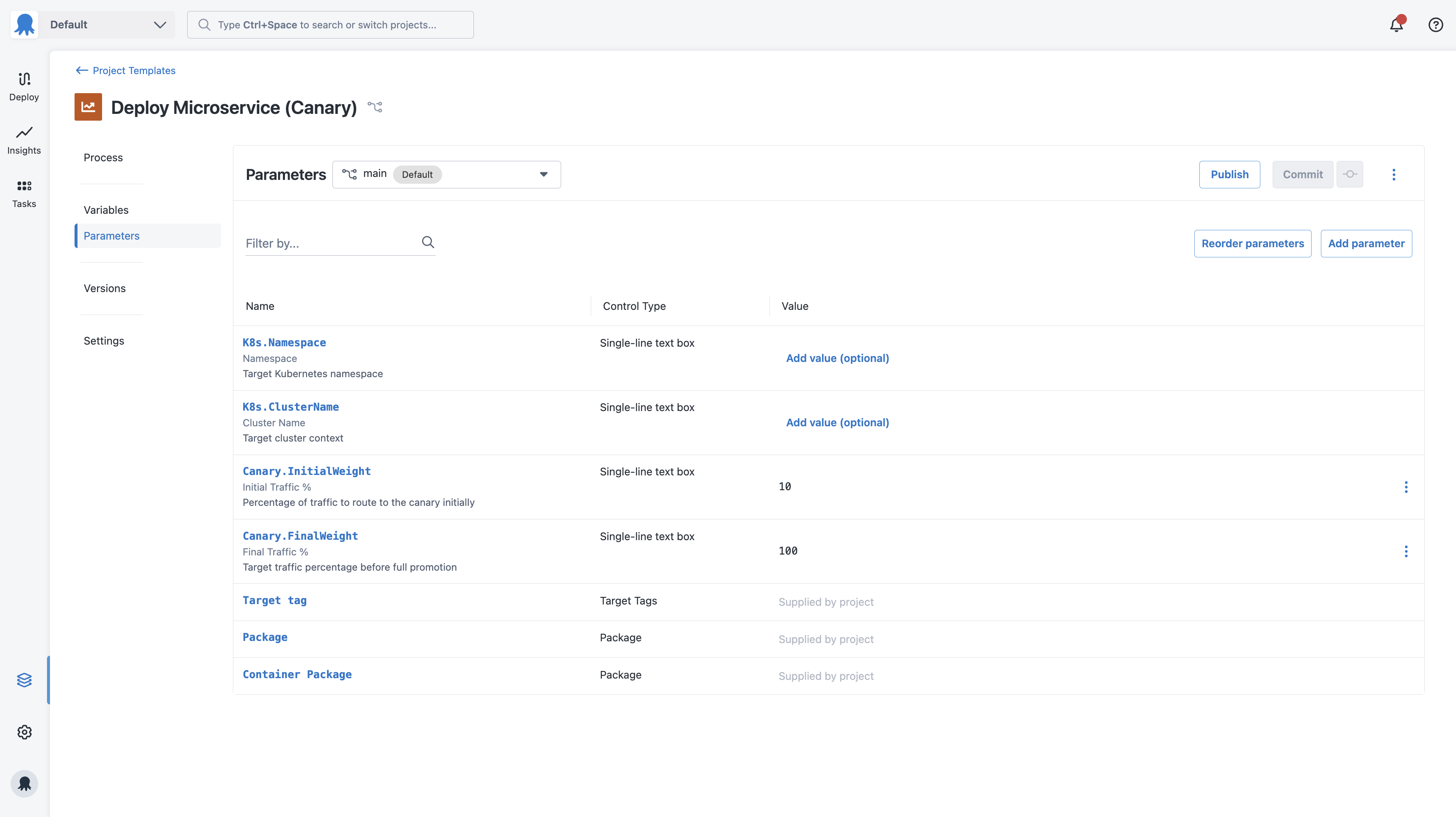
Parameters let you define the inputs a user must supply when they create a project from the template. They’re the mechanism for making a template flexible. Rather than hardcoding values that differ between teams or spaces, you expose them as parameters.
Project templates don’t yet support parameter scoping or sensitive parameter default values. We’re still shaping how parameters, variables, and scoping work together and expect this area to evolve. We’d love your feedback.
To create a parameter, navigate to Parameters on your project template and add a new parameter.
Variables
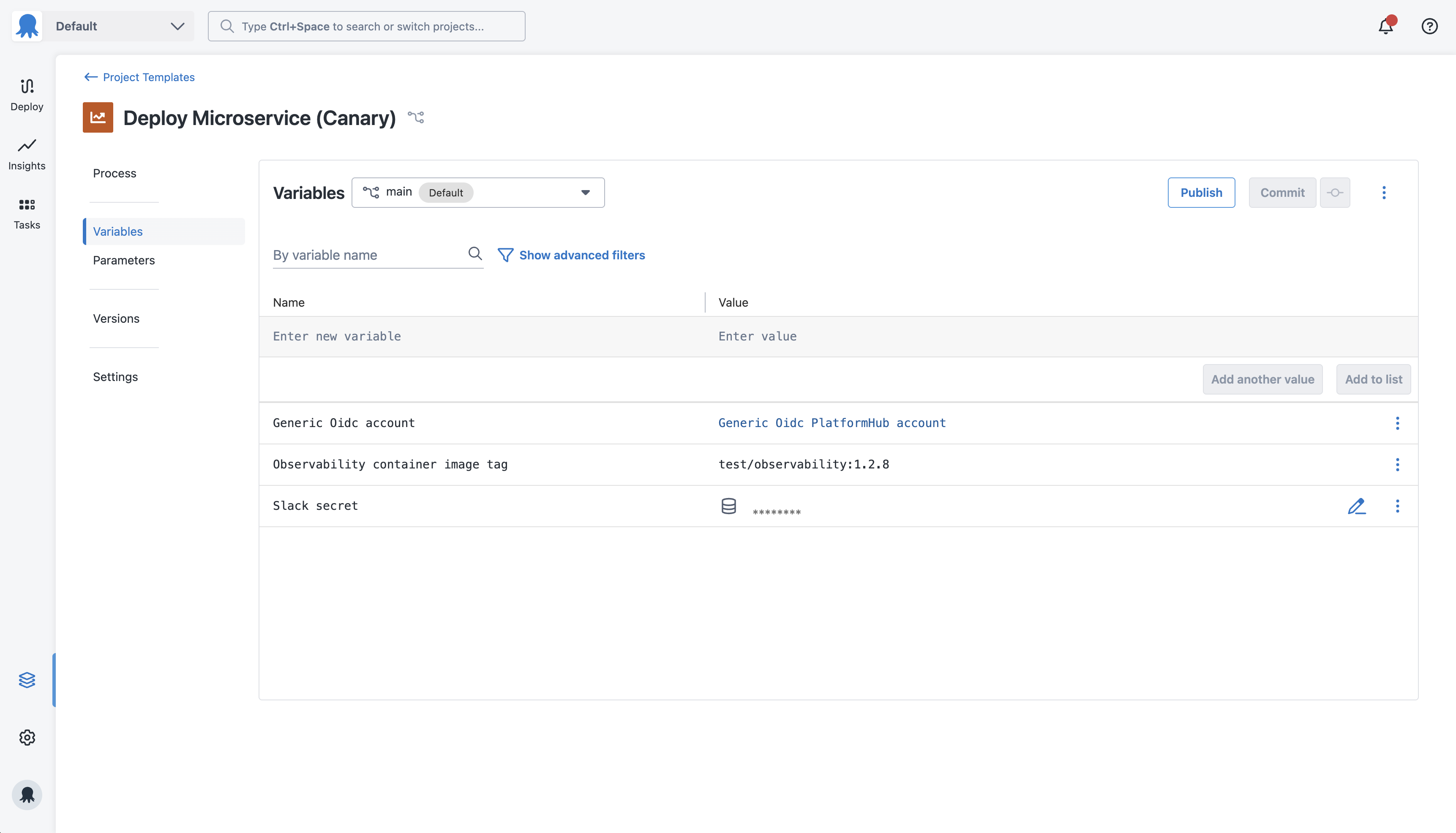
Variables in a project template work the same way as project variables in a standard Octopus project. Any variable you define is available to the deployment and can be selected in steps.
Unlike parameters, users can’t change the variables defined in a template when creating a project from it. Use variables for values that must be consistent across every project, like accounts. If you need users to provide their own value, expose it as a parameter instead.
Variable values can reference parameters, letting you combine fixed template-level values with project-supplied inputs where needed.
Variable types
Project template variables support the following types:
- Text: Plain string values
- Sensitive: Encrypted values like passwords and API keys
- Account: References to Accounts defined in Platform Hub
- Certificate: References to Certificates defined in Platform Hub
Variable scoping
You can scope a project template variable to any combination of the following:
- Specific steps in the deployment process
- Process template usages, when the template’s deployment process includes one or more
- Channels
- Environment parameters
- Target tag parameters
- Tenant tag parameters
Scoping is fixed at the template level. The same scoping rules apply to every project created from the template.
Project settings
Project templates let you set a few project-level defaults that flow through to every project created from the template. Configure these in Settings on the project template.
- Lifecycle: The default Lifecycle for the template
- Multi-tenant Deployments: Whether projects created from the template require tenants, allow tenants, or run untenanted
- Project Persistence: The preferred storage for projects created from the template, either in Octopus or backed by Git. The project creation flow defaults to your recommendation and lets users pick a different option if they need to
Git repository structure
Octopus stores each project template as a folder in the Platform Hub Git repository. The folder name is a slug derived from the template name. Each project template is structured as follows:
project-templates/<template-slug>/
    channels/
    lifecycles/
    deployment_process.ocl
    parameters.ocl
    template.ocl
variables.oclchannelscontains the configuration files for each channel/ lifecyclescontains the configuration files for each lifecycle/ templatecontains the template settings.ocl deployment_processcontains the deployment process steps.ocl parameterscontains the parameters defined for the template.ocl variablescontains the variables defined for the template.ocl
Octopus stores published versions, sensitive variables, and space sharing configurations in the database, not in the Git repository.
Committing, publishing, and sharing
After you’ve configured your project template, see Publishing and sharing templates for how to commit, publish, and share it.
Using a project template
After you publish and share a template, users in a space can create a new project from it. For details on creating and managing templated projects, see Templated projects.
Feedback
Project templates are in Public Preview and we’re actively shaping how the feature works. If you run into something unexpected or have thoughts on how parameters, variables, scoping, or anything else should work, we’d love to hear from you. Share your feedback to help us build this the right way.